Convert an image to pixel art online
Turn a photo or illustration into pixel art. Adjust the pixel size, keep its original colors or choose a retro palette, and download the result as a PNG.
or drop one image here
JPG, PNG, WebP, GIF or BMP · up to 100 MB
Your image is processed locally and never uploaded
Processing…
Pixel art settings
Adjust image
Your image is processed locally and never uploaded · JPG, PNG, WebP, GIF or BMP · up to 100 MB
Turn a photo into pixel art
Pixel size 16 turns this photo into a 79 × 79 grid of square cells, using 16 colors taken from the photo itself. Drag the divider to compare.
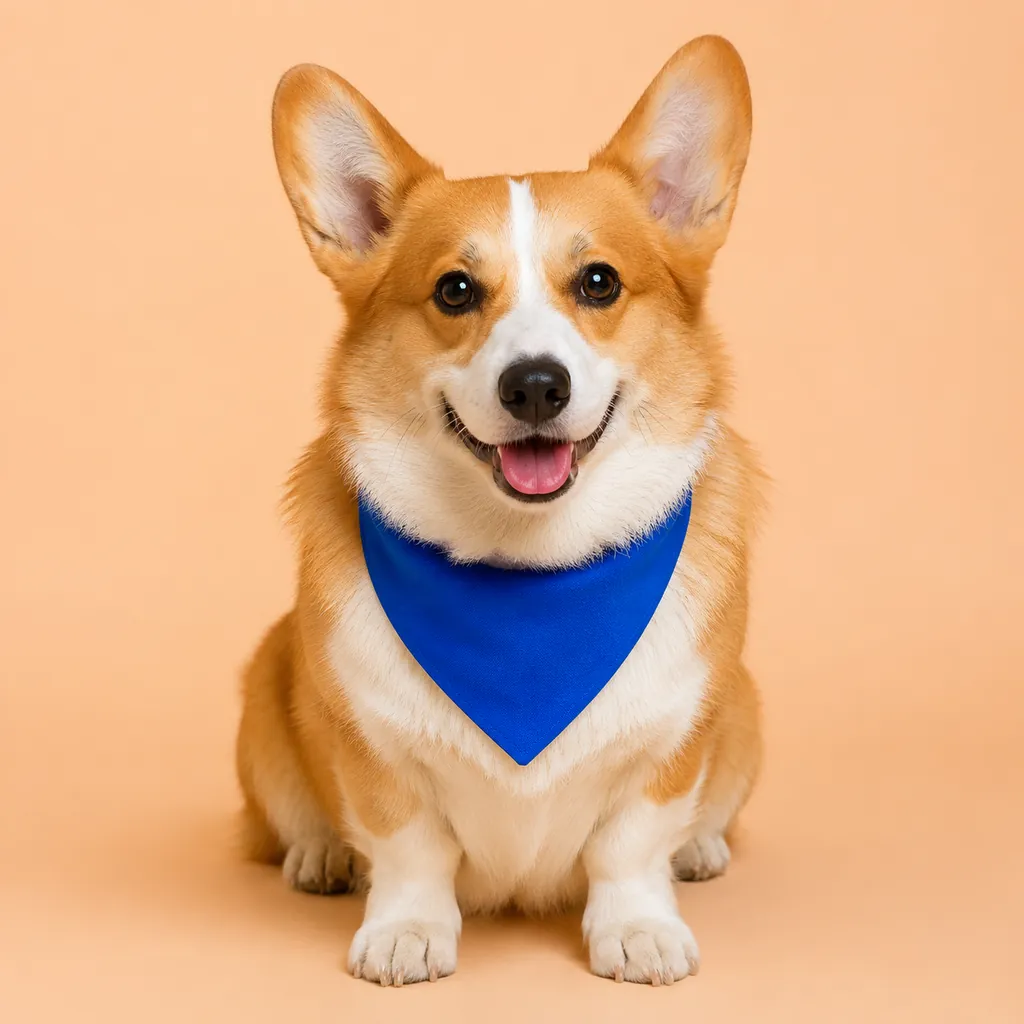
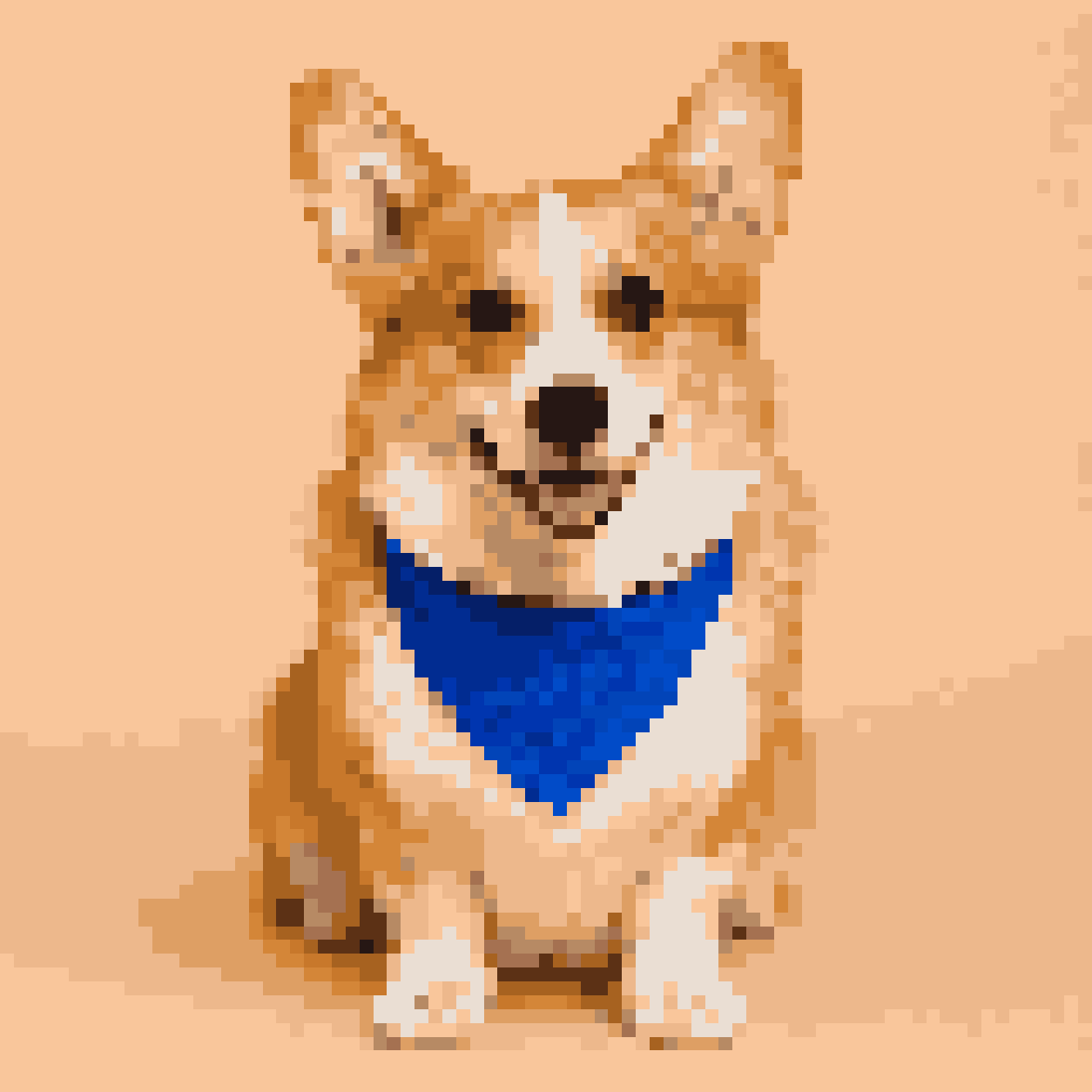 Photo Pixel art
Settings used
- Pixel size 16
- Color mode
- From image · 16 colors
- Colors in the result
- Pixel grid
- 79 × 79 cells
- Enlarged PNG
- 1254 × 1254 pixels
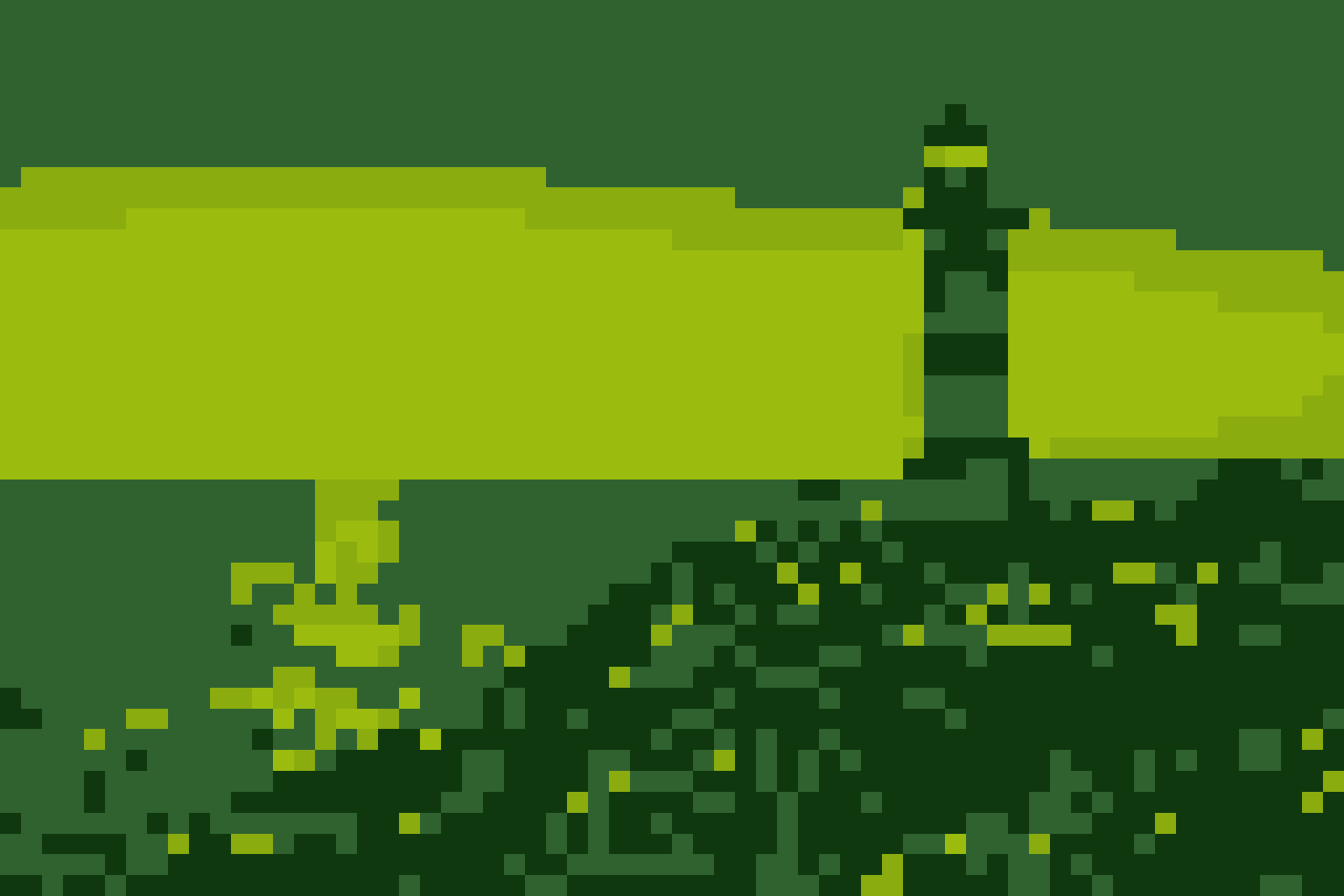
Make pixel art for avatars and retro graphics
Adjust the pixel size to turn your photo into a field of sharp square cells. Keep the original colors for natural shading, or choose a limited palette for a more graphic style. For hiding a face or sensitive text in an image, use the separate Pixelate Image tool.
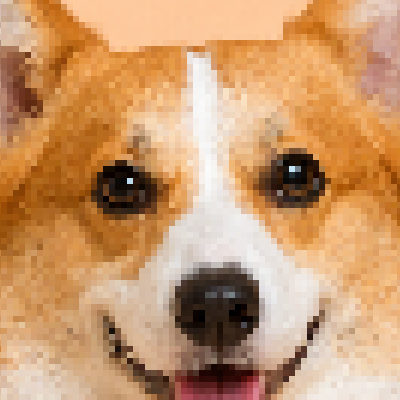
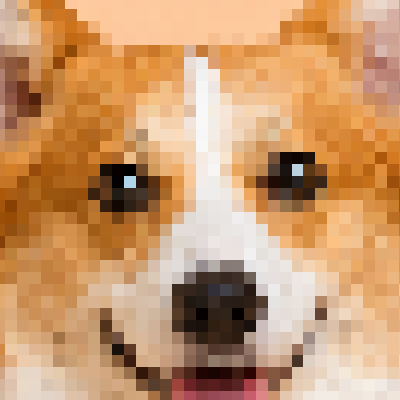
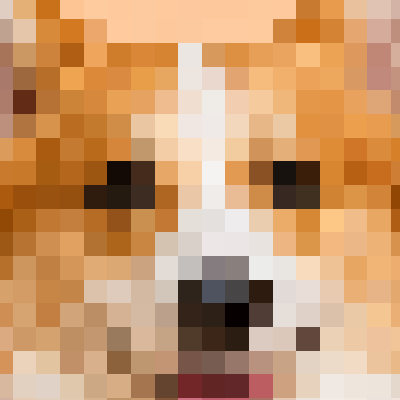
Keep fine details or build a chunky style
Pixel size runs from 1 to 100. A smaller value creates more cells; 1 uses every pixel of the image being processed. Larger values simplify shapes. Start with original colors, then try a palette if you want a retro look. Brightness, contrast, and saturation let you adjust the image before choosing the final result.
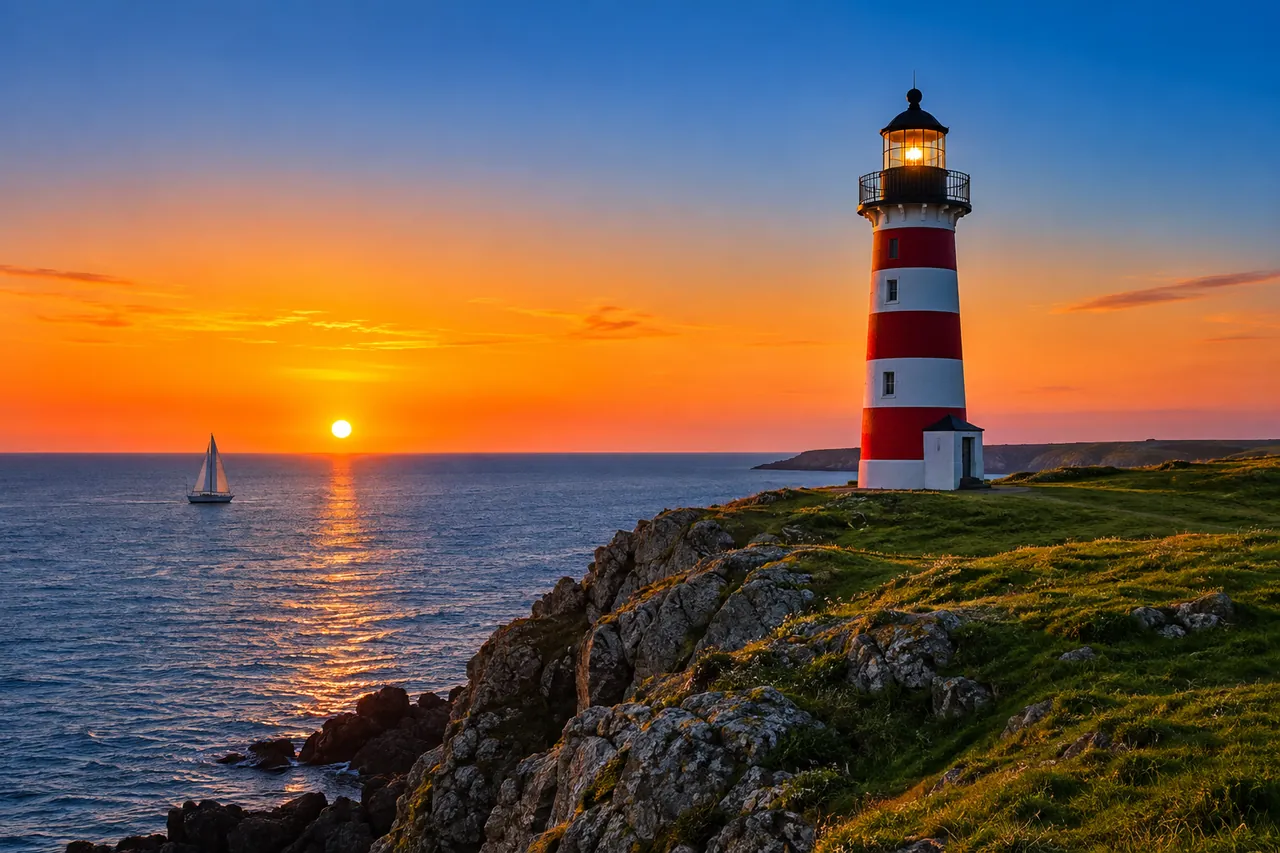
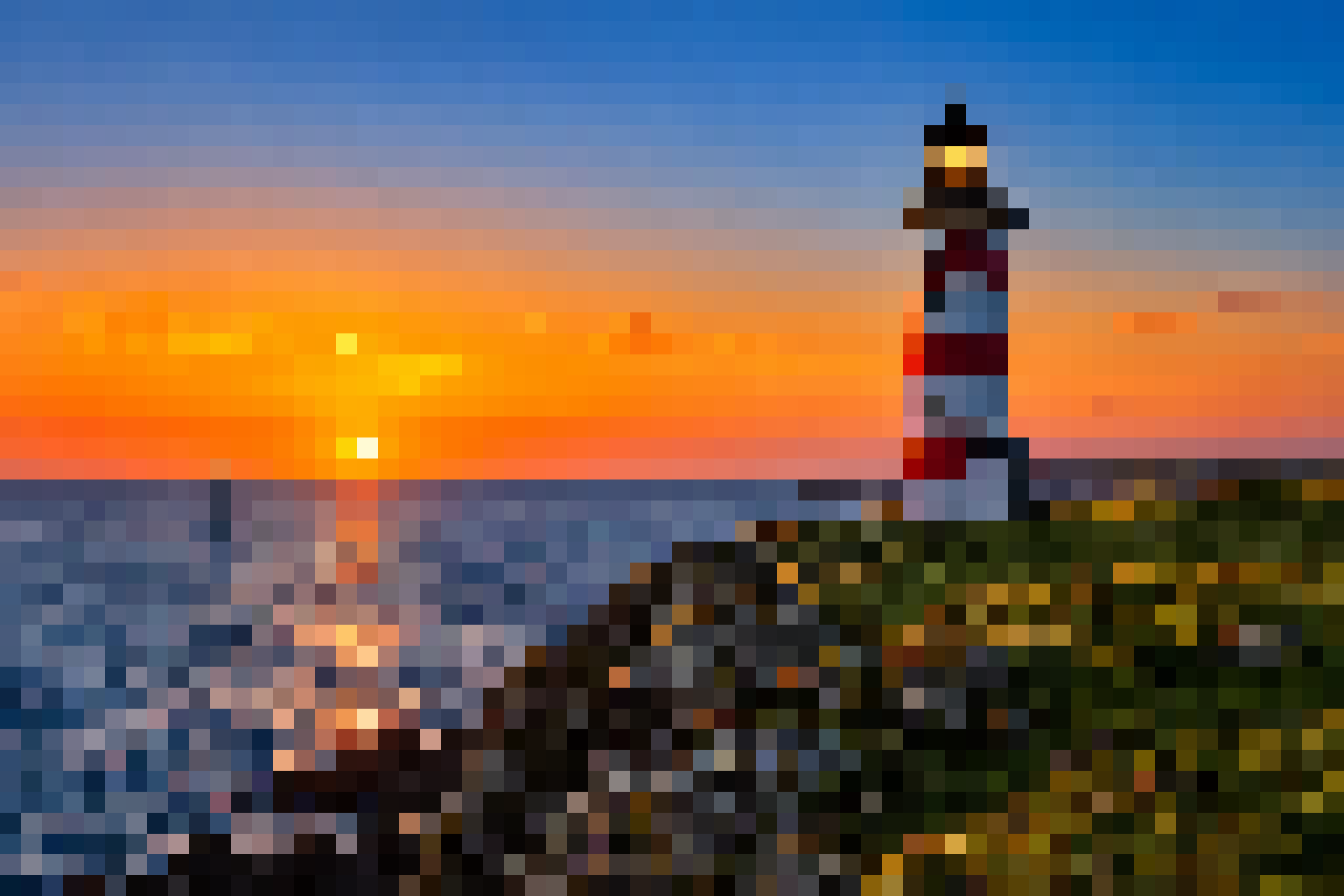
Images that work well as pixel art
A clear silhouette, strong contrast, an uncluttered background, and one main subject usually work best on a small grid. Photos with many tiny objects may need more grid pixels, while logos, avatars, sprite references, and simple illustrations often work with fewer pixels and colors. The result is a useful starting point, but production game art may still need manual pixel-by-pixel cleanup.

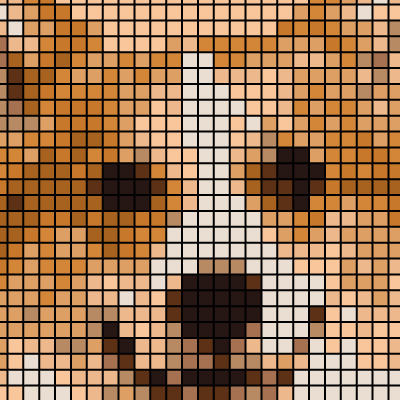
Formats, transparency, and download sizes
Use browser-decodable JPG, JPEG, PNG, WebP, GIF, or BMP files up to 100 MB. Transparency is retained, and animated files use their first frame. Download the native pixel grid for further editing or an enlarged PNG with sharp square edges; optional grid lines are included only in the enlarged version.
How to convert an image to pixel art
Choose an image
Choose or drop one JPG, PNG, WebP, GIF, or BMP image.
Set the pixel size
Adjust Pixel size; smaller values preserve more detail. Start with Original colors.
Pick colors and adjust
Try a palette or open Adjust image to change brightness, contrast, and saturation. Check the result at 100%.
Download your PNG
Download the small pixel grid for editing, or the enlarged PNG for sharing. Optional grid lines appear only in the enlarged version.
A practical online pixel art converter
Choose your level of detail
Use small pixels to keep fine edges, or larger pixels for a chunky retro style. Fit the whole image in the preview or inspect it at 100%.
Keep or simplify the colors
Original colors keep the sampled image tones. Choose From image for a palette of 1–64 colors, or try Game Boy, PICO-8, or grayscale.
Keep the image on your device
Decoding, color reduction, preview, and PNG export all run in your browser. The image is never uploaded to ImageNow.
Frequently asked questions
How do I convert an image or photo to pixel art?
Choose an image and adjust Pixel size while watching the preview. Keep Original colors, select From image to limit the colors, or choose a fixed palette. Inspect the result at 100%, then download the pixel grid or enlarged PNG.
How do I preserve more detail in the pixel art?
Reduce Pixel size and keep Original colors selected. Pixel size 1 retains the dimensions of the image being processed; larger values create fewer, larger cells.
How many colors should pixel art use?
Original colors preserves the sampled tones without forcing a small palette. For a limited-color style, choose From image and set a maximum of 1–64 colors. Start around 8–16 for a simple sprite, or raise the limit to retain more shading. Game Boy, PICO-8, and grayscale use their own fixed palettes.
What is the difference between the two PNG downloads?
Download pixel grid saves one image pixel per grid cell, which is useful for editing sprites. Download enlarged PNG saves a larger version with crisp square cells for viewing or sharing. The tool shows both sizes; optional grid lines are included only in the enlarged PNG.
Can I add a visible grid to the pixel art?
Yes. Turn on Grid lines and choose a grid color. The preview and enlarged PNG show the cell boundaries; the small pixel-grid download keeps the artwork without those lines.
Which image formats are supported, and will animation be preserved?
You can use JPG, JPEG, PNG, WebP, GIF, or BMP images up to 100 MB when the browser can decode them. The output is a PNG. Animated GIF and WebP files are handled as a still frame rather than an animated result.
Is this an AI pixel art generator?
This converter works directly with your chosen photo or illustration in the browser. Pixel size, color mode, and image adjustments determine the result, using the shapes and details already present in the image.
Is my image uploaded to a server?
No. Decoding, resizing, palette quantization, preview, and PNG export all run locally in your browser. Your selected image does not need to be uploaded to an ImageNow server. Free tools do not upload your files. AI features that require server processing upload them to our servers.